Your cart is currently empty!
Search results for: “R”
-
Substation Consultation Request
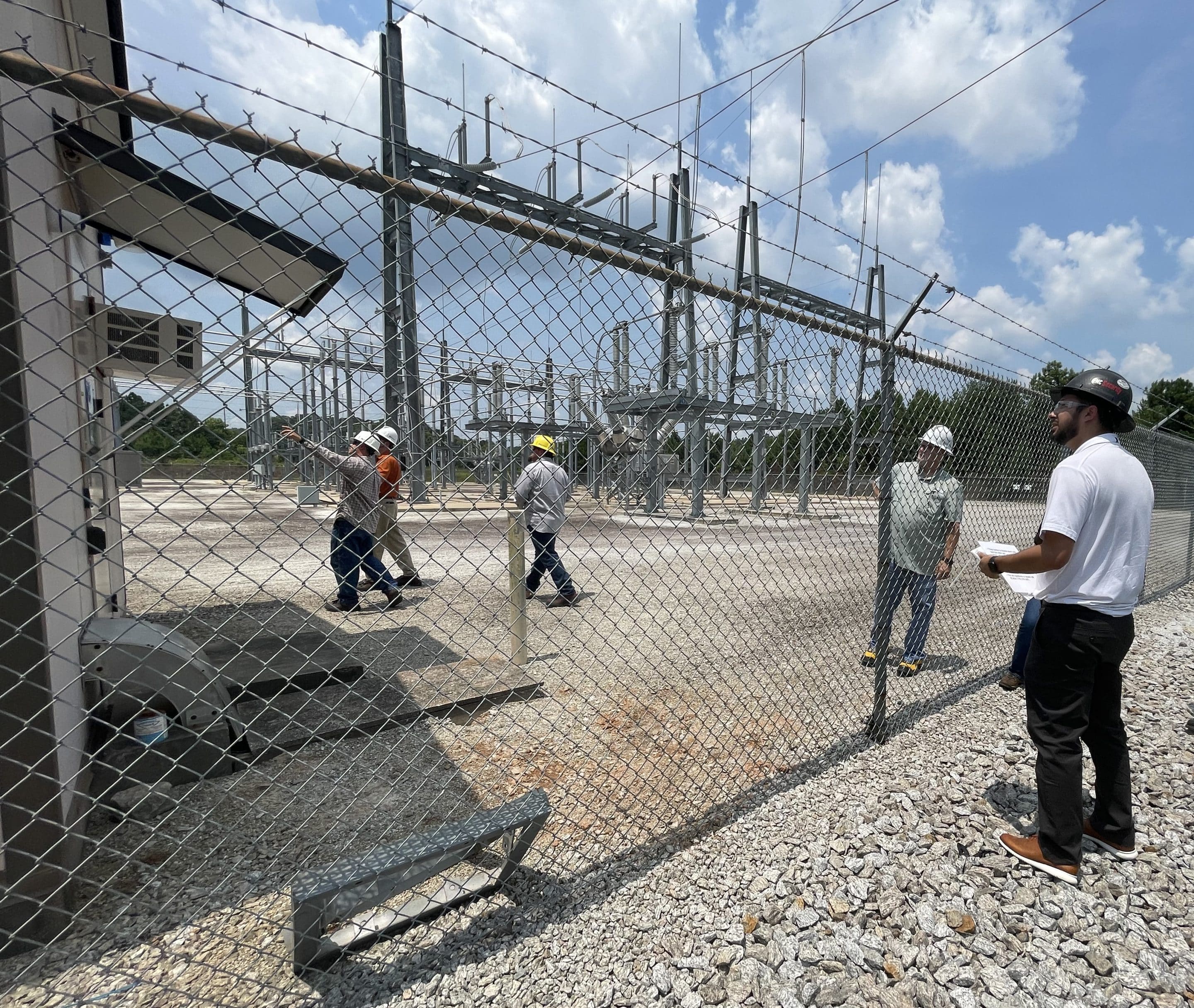
Utility Substation Solutions
Please complete the following form to request a consultation with an EMC Security Commercial and Industrial Consultant.
-
Sugar Hill Home Security
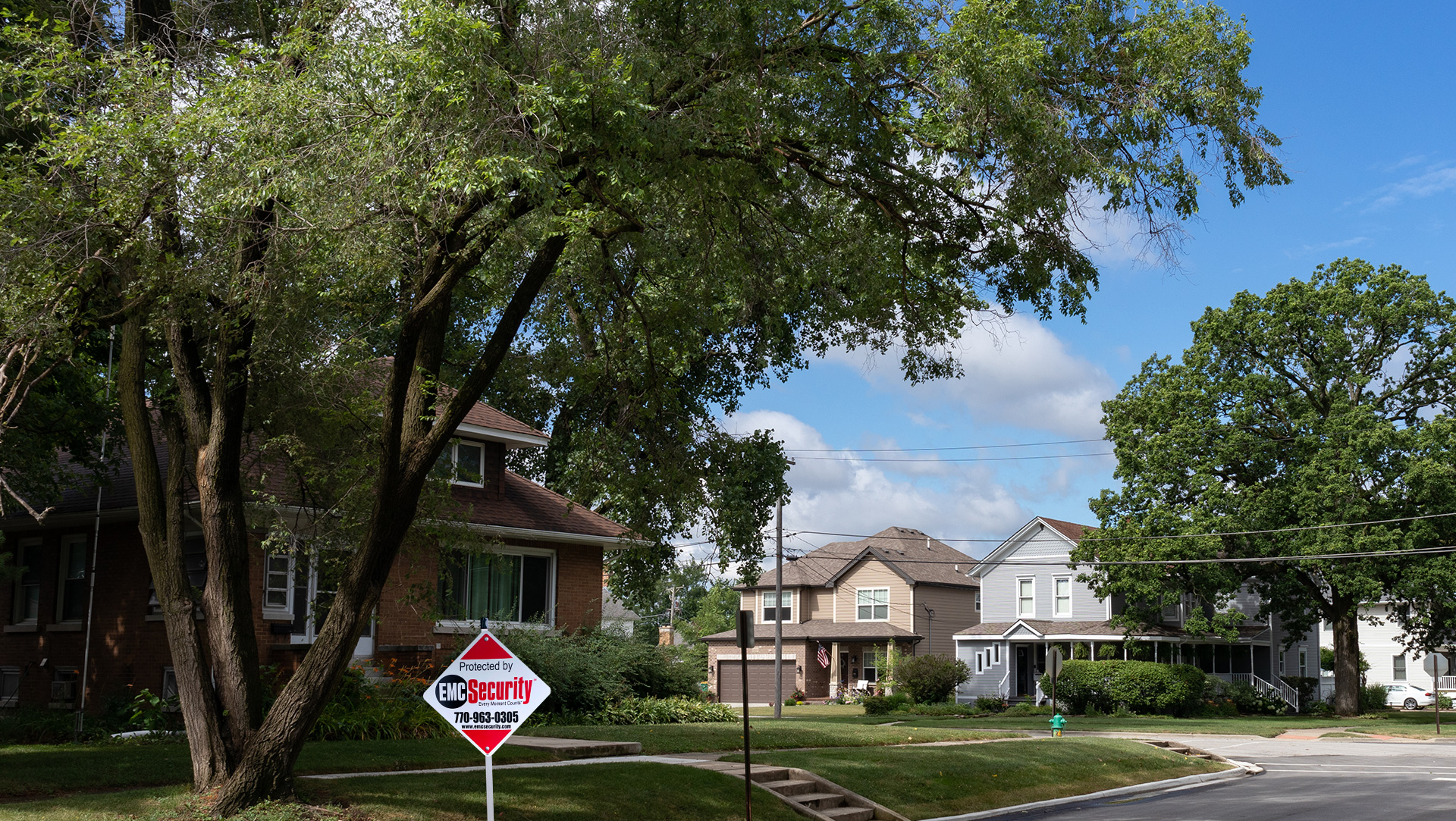
Sugar Hill Home Security Solutions
Protect your home with a modern, smart security system

“I’m happy with the flexibility it allows me…there’s no contract binding me! Knowing my home is safe and being looked after while I’m at home or away gives me a sense of peace and calm.” – Cheryl C.
“At this point, EMC has a 100 out of 100 score. They were punctual, efficient, professional and just nice. I couldn’t be any happier with the results. The cameras are excellent as well.” – Neil K.
“Very comfortable with EMC as they are also owned by my electric co-op, Jackson EMC which is great, and their monthly monitoring cost can be billed on my electric bill monthly, with no service contract.” – Steve G.
“It’s nice to feel like they truly do want to always compete for our business. To be able to feel secure and support a local business on top of it all makes us happy! The app is great and easy to use! Been very happy so far!” – Lina S.
“EMC Security knew exactly what I needed for my home. I feel secure now.” – Dorothy M.
Professional Installation and DIY system
Arm your home in Braselton with a professionally installed or DIY self-installed system at a significant savings.

Activate the system already in your home
Use your existing equipment – upgrade your components and make it as good as new – or simply activate it for monitoring.


Professional Installation and DIY systems
Arm your home in Braselton with a professionally installed or DIY self-installed systems at a significant savings.
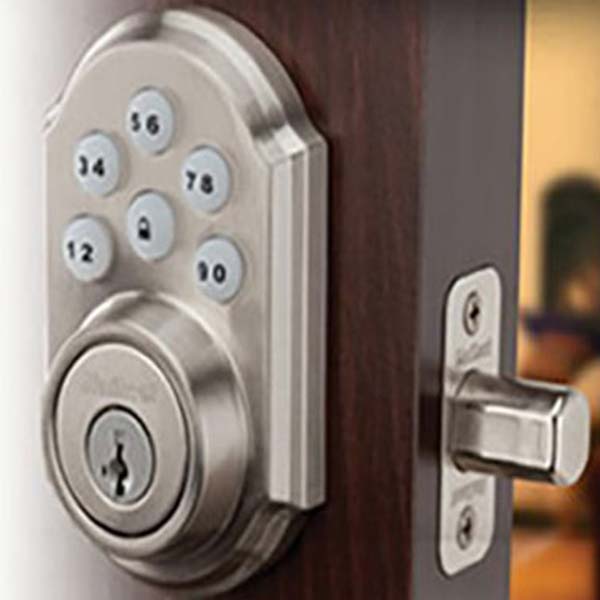
Smart home protection
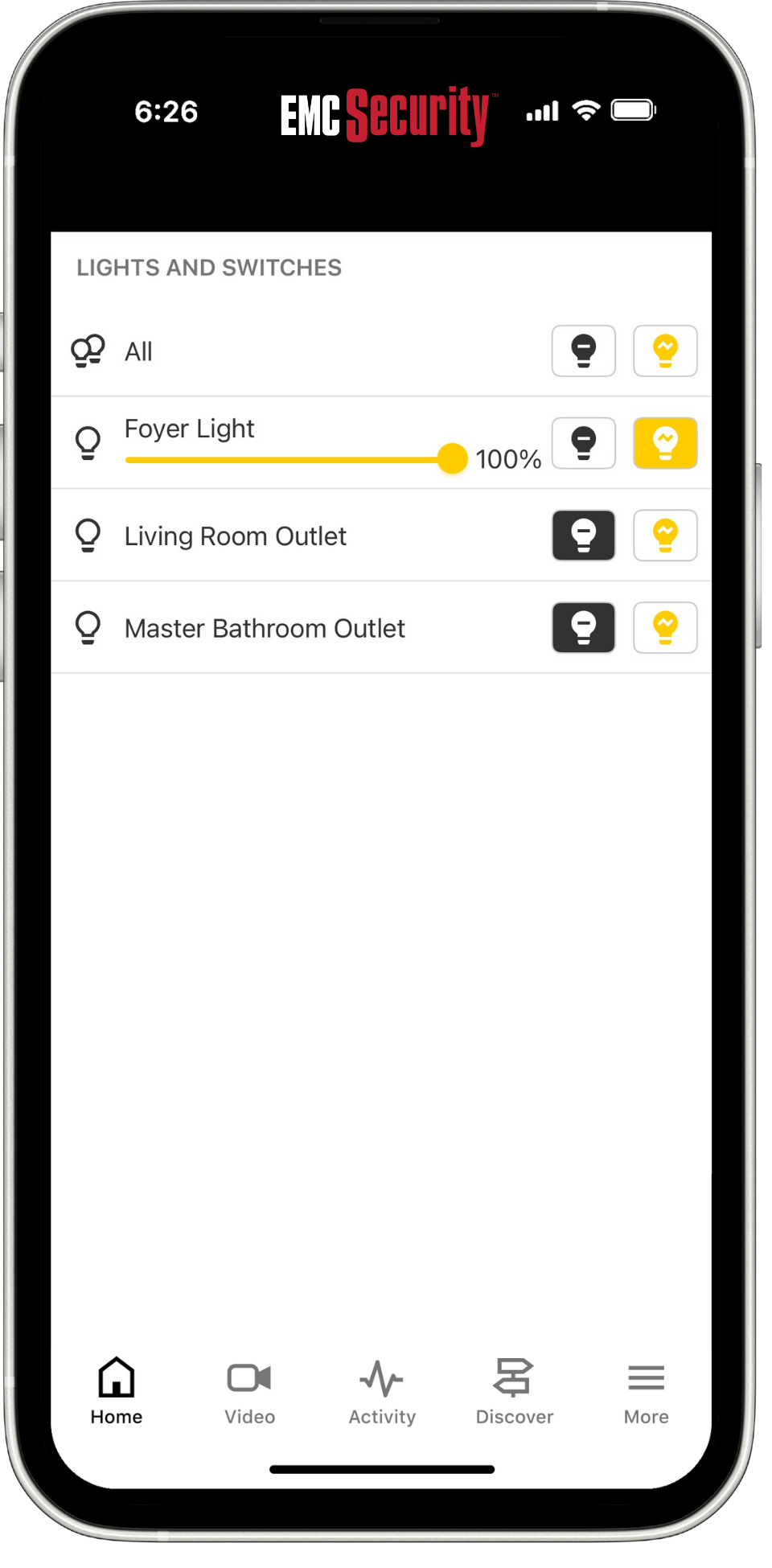
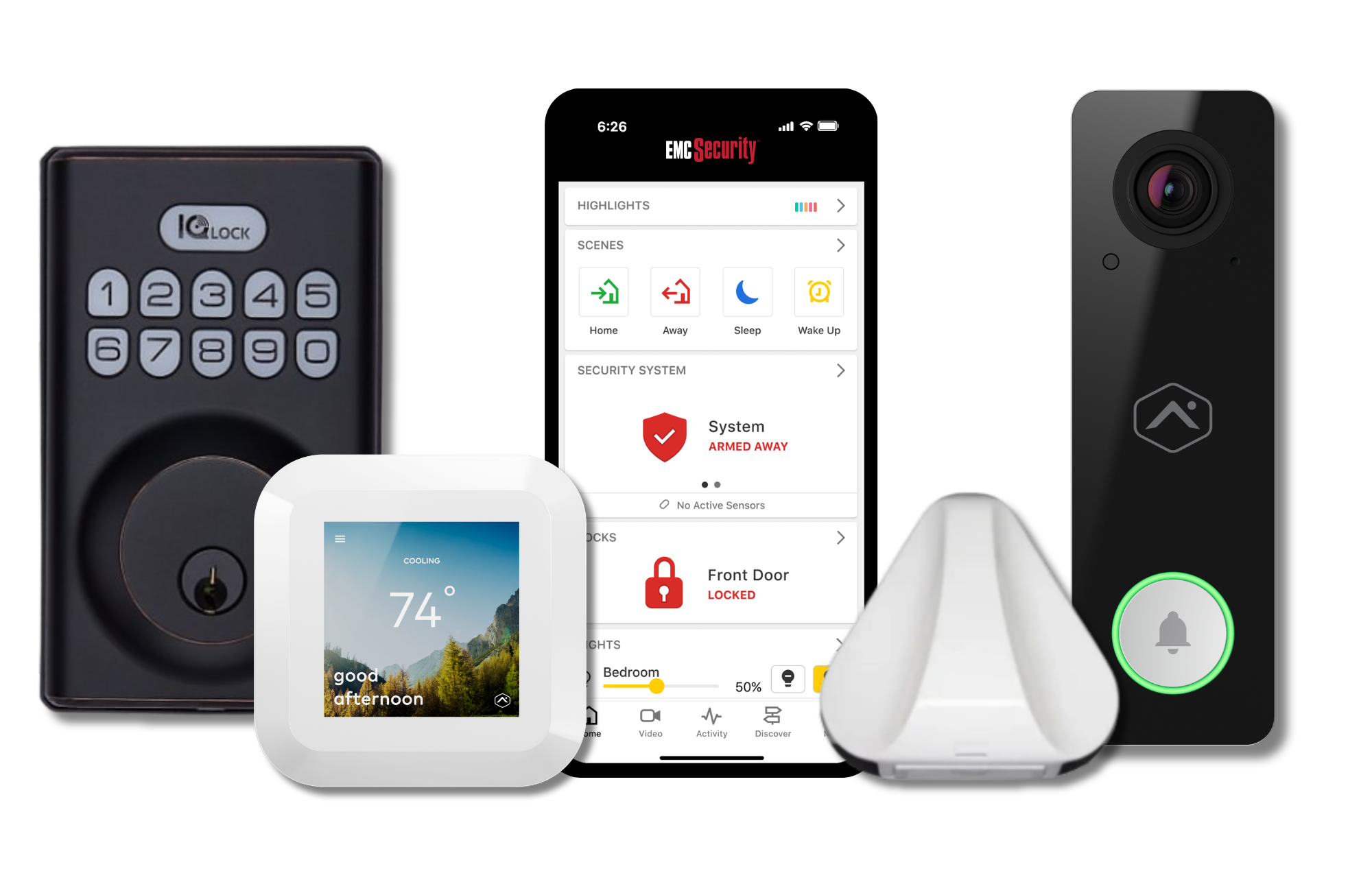
Integrate connected home devices to your security system to monitor for water leaks, control temperature, lock doors, and turn on/off your lights.

EMC Security Protects 182,865 kids in Gwinnett County Schools
Why not at home too?


Sugar Hill at a Glance
Population
Sugar Hill’s population is approximately 25,259 people. Since 2020, it has had a population growth over 23%.
Cost of Living
Sugar Hill’s population is approximately 25,259 people. Since 2020, it has had a population growth over 23%. Sugar Hill’s population is approximately 25,259 people. Since 2020, it has had a population growth over 23%.
Living in Braselton
Sugar Hill is a diverse area with something for everyone. Families love this attractive city for its wonderful schools, safe neighborhoods and tight-knit community.
Property Crime Stats
Sugar Hill has an overall crime rate of 10 per 1,000 residents, making the crime rate here near the average for all cities and towns of all sizes in America.
(source: neighborhoodscout.com/ga/sugarhill)
-
Support

Customer Support
System Enhancements and Upgrades >>
Free EMC Text-Alert
Opt-in to free EMC Text-Alert and get a text notification on your mobile phone, chat with your emergency contacts, and click to dispatch or dismiss the alarm.

Security Cameras and Video Doorbells
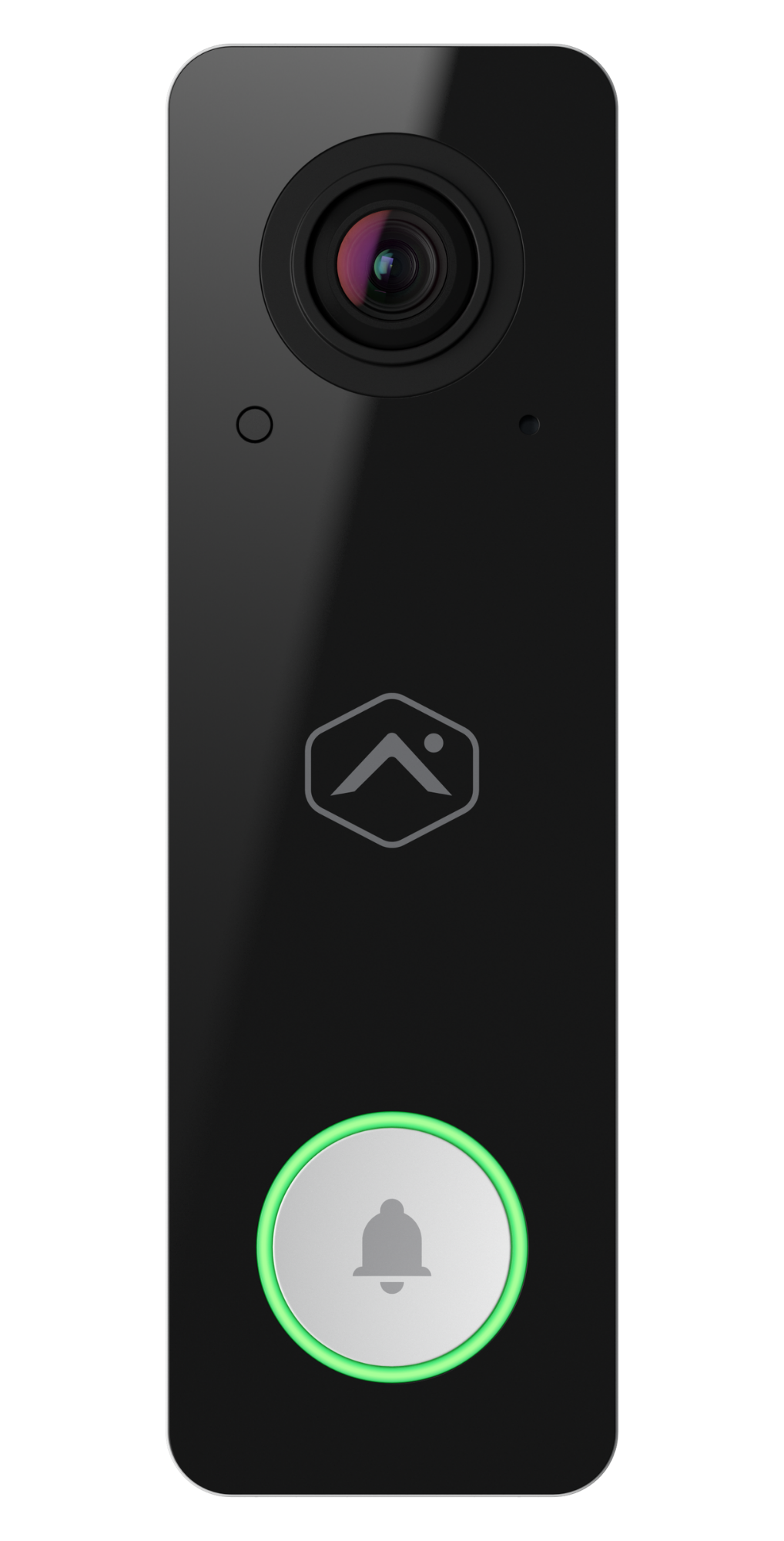
Integrate security camera video with alarm monitoring to stay connected to what’s happening in and around your property.

Mobile App Controls
Use your smartphone to arm/disarm your system, smart-devices and more. Add an interactive app today.

-
Access Control

Access Control
Restrict access. Reduce liability.

Customize Your Solution
Certified engineers will utilize cutting edge systems to track and deter access, restrict sensitive areas, and remotely control systems.
From multi-site implementations to single door access, EMC Security’s access control solutions cost-effectively allow owners and managers to limit access to their facility as well as strategic high-security areas inside their buildings.

Access Control Options
- Biometric, proximity, and smart card readers. Put an end to re-keying locks
- Full integration with intrusion alarm, fire/life safety, and video surveillance systems
- Secure web and PC based solutions for data management
- Enterprise and government solutions
- Photo I.D. badging programs
- Electronic mag locks, key switch controls, digital key pads, & gate controls
Motion sensing door release devices and door egress bars- Emergency pull stations and turnstiles
- Cloud-based access control
- Avigilon access control partner
- Telephone entry & intercom systems
Vertical Markets

Retail
Challenges include theft and shrinkage, employee safety, and maintaining high work standards while the owner is away from the business.

Logistics
Key challenges include verifying goods have been received and shipped, locating items, preventing shrinkage and theft, and mitigating injury.

Multi-Family
Multi-family properties must discreetly manage and protect a large facility or campus without sacrificing the comfort of the residents.

Office
Worker safety, fire protection, remaining code compliant, and securing important documents are key issues in office environments.

Education
Concerns regarding school security have dramatically increased as schools across the nation have become the target of crime, violence, and drug activity.

Utilities
Utilities face protecting the critical infrastructure that serves the community while remaining code compliant with growing utility regulation.

Data Center
It is critical for a data center to protect valuable technological assets and information in a low foot-traffic environment.

Manufacturing
Key challenges include verifying quality control standards, evaluating manufacturing up-time, and mitigating workplace injury.

THE EMC SECURITY DIFFERENCE
Non-proprietary systems
Elite technology partnerships provide the best-in-class, scalable solutions, customized to support your security objectives today, and into the future.
End to end security solutions
As your single-source provider, our engineers, project managers and technicians address your needs with cost-effective solutions and service.
Standards and compliance
Our team will ensure that your facility meets compliance and that you’re adequately prepared to meet any possible regulatory standards.
Local service and support
Owned by three non-profit utility companies, we’ve served the community for over 22 years, with a commitment to excellence in everything we do.
-
Fire Protection and Code Inspections
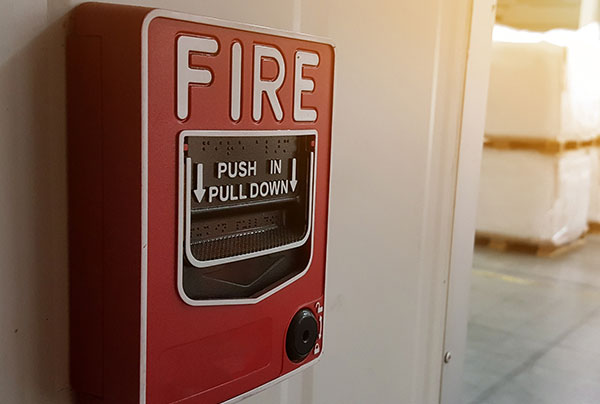
Fire Protection and Code Inspections

Protect Assets and Stay Compliant
Protect your facilities, property, inventory and most importantly, the people inside with sophisticated fire detection systems that are designed to be easily integrated with other solutions.
Facility managers of schools, hospitals, businesses and residential complexes are faced with ensuring that facilities’ fire/life safety systems are in compliance with the rapidly changing and increasingly complex codes.
EMC Security offers the technical expertise and product lines to keep your facilities safe and in compliance with local, state and national requirements.
Fire Protection Solutions
- Conventional Fire Systems
- Addressable Fire Systems
- Carbon Monoxide Detectors
- BDA/ERRC Solutions – IRC 510 Code Compliance
- Campus-wide Wireless Fire Systems
- Digital Voice Command Systems
- Annual Compliance Inspections
BDA/ERRC Solutions
IFC 510 Code Compliance
Radio signal boosting solution designed to enhance in-building radio frequency signal coverage for public safety radio – customized to meet all public safety frequency band ranges.
TESTING
Whether you have a new building or existing, we’ll provide testing of in-building signals and systems.
DESIGN
EMC Security will design the most effective way to provide full radio coverage throughout the structure.
INSTALLATION
On-site project managers and technicians coordinate all aspects of the installation of your BDA system.
MAINTENANCE
We’ll provide annual testing and maintence to ensure the signal boosters are functioning properly.
COVERAGE PROBLEM
Radio signals are weakened by:
- RF interference
- Low-E glass windows
- Underground and concrete structures

THE BDA SOLUTION
Signal boosting system for public safety radio
- Utilize DAS Antenna for 100% building coverage
- Customizable to meet all public safety frequency band ranges
- Integrates with Notifier Fire Alarm Panel

Mass Notification Systems
A mass notification system, or Digital Voice Command (DVC) system, is a powerful integrated emergency communication system designed to broadcast one or two way emergency messaged to individuals or groups simultaneously. Building occupants will receive clear voice instructions pertaining to their location and proximity to the emergency.

Vertical Markets
Retail
Challenges include theft and shrinkage, employee safety, and maintaining high work standards while the owner is away from the business.
Logistics
Key challenges include verifying goods have been received and shipped, locating items, preventing shrinkage and theft, and mitigating injury.
Multi-Family
Multi-family properties must discreetly manage and protect a large facility or campus without sacrificing the comfort of the residents.
Office
Worker safety, fire protection, remaining code compliant, and securing important documents are key issues in office environments.
Education
Concerns regarding school security have dramatically increased as schools across the nation have become the target of crime, violence, and drug activity.
Utilities
Utilities face protecting the critical infrastructure that serves the community while remaining code compliant with growing utility regulation.
Data Center
It is critical for a data center to protect valuable technological assets and information in a low foot-traffic environment.
Manufacturing
Key challenges include verifying quality control standards, evaluating manufacturing up-time, and mitigating workplace injury.
THE EMC SECURITY DIFFERENCE
Non-proprietary systems
Elite technology partnerships provide the best-in-class, scalable solutions, customized to support your security objectives today, and into the future.
End to end security solutions
As your single-source provider, our engineers, project managers and technicians address your needs with cost-effective solutions and service.
Standards and compliance
Our team will ensure that your facility meets compliance and that you’re adequately prepared to meet any possible regulatory standards.
Local service and support
Owned by three non-profit utility companies, we’ve served the community for over 22 years, with a commitment to excellence in everything we do.
-
Intrusion Detection

Intrusion Detection
Protect against break-ins and unauthorized entry.
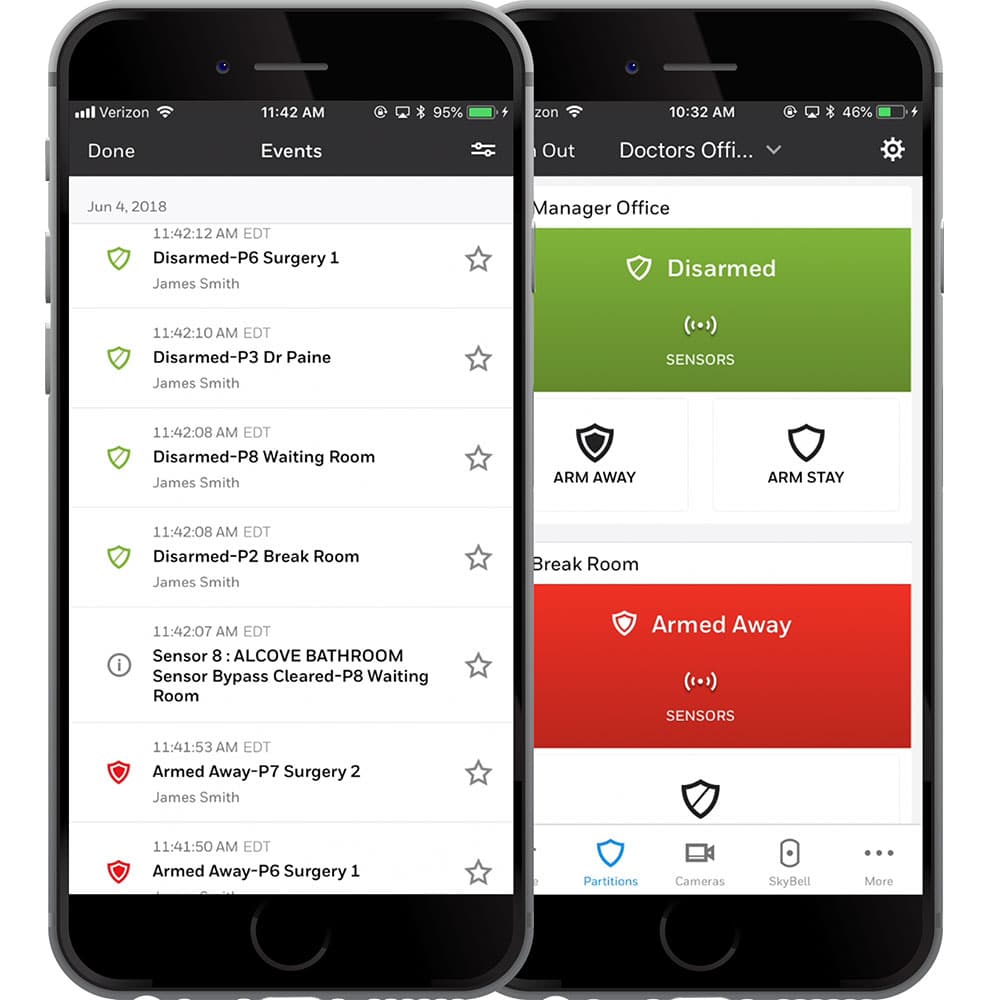
The Foundation of Your Security System
We provide the latest technology for perimeter and internal security measures; monitored by multiple UL2050 CRZM, CSAA Five Diamond central monitoring centers. Add cellular backup and interactive mobile app control for additional security protection.
Intrusion Detection Components
- Burglar alarm panels
- System keypads
- Door and window sensors
- Panic/duress buttons
- Temperature/flood sensors
- Full access/fire/video integration
- Central station monitoring
- Motion detectors
- Glass-break sensors
- Alternative communication
- Control from remote location
BDA/ERRC Solutions
IFC 510 Code Compliance
Radio signal boosting solution designed to enhance in-building radio frequency signal coverage for public safety radio – customized to meet all public safety frequency band ranges.
TESTING
Whether you have a new building or existing, we’ll provide testing of in-building signals and systems.
DESIGN
EMC Security will design the most effective way to provide full radio coverage throughout the structure.
INSTALLATION
On-site project managers and technicians coordinate all aspects of the installation of your BDA system.
MAINTENANCE
We’ll provide annual testing and maintence to ensure the signal boosters are functioning properly.
COVERAGE PROBLEM
Radio signals are weakened by:
- RF interference
- Low-E glass windows
- Underground and concrete structures
THE BDA SOLUTION
Signal boosting system for public safety radio
- Utilize DAS Antenna for 100% building coverage
- Customizable to meet all public safety frequency band ranges
- Integrates with Notifier Fire Alarm Panel
Mass Notification Systems
A mass notification system, or Digital Voice Command (DVC) system, is a powerful integrated emergency communication system designed to broadcast one or two way emergency messaged to individuals or groups simultaneously. Building occupants will receive clear voice instructions pertaining to their location and proximity to the emergency.
Vertical Markets
Retail
Challenges include theft and shrinkage, employee safety, and maintaining high work standards while the owner is away from the business.
Logistics
Key challenges include verifying goods have been received and shipped, locating items, preventing shrinkage and theft, and mitigating injury.
Multi-Family
Multi-family properties must discreetly manage and protect a large facility or campus without sacrificing the comfort of the residents.
Office
Worker safety, fire protection, remaining code compliant, and securing important documents are key issues in office environments.
Education
Concerns regarding school security have dramatically increased as schools across the nation have become the target of crime, violence, and drug activity.
Utilities
Utilities face protecting the critical infrastructure that serves the community while remaining code compliant with growing utility regulation.
Data Center
It is critical for a data center to protect valuable technological assets and information in a low foot-traffic environment.
Manufacturing
Key challenges include verifying quality control standards, evaluating manufacturing up-time, and mitigating workplace injury.
THE EMC SECURITY DIFFERENCE
Non-proprietary systems
Elite technology partnerships provide the best-in-class, scalable solutions, customized to support your security objectives today, and into the future.
End to end security solutions
As your single-source provider, our engineers, project managers and technicians address your needs with cost-effective solutions and service.
Standards and compliance
Our team will ensure that your facility meets compliance and that you’re adequately prepared to meet any possible regulatory standards.
Local service and support
Owned by three non-profit utility companies, we’ve served the community for over 22 years, with a commitment to excellence in everything we do.
-
Alarm Monitoring

Always Watching
So You Don’t Have To Be.
No system is complete without professional monitoring to keep your home and family safe.
Alarm Monitoring
- 24/7 Professional Monitoring.
- Low Rates.
- No Contracts Required.

Essentials
- Landline or internet
- 24/7 nation-wide monitoring for intrusion & fire
- Redundant monitoring centers. 100% central station – no remote operators.
- UL Listed; CSAA 5 Diamond Certified
- FREE Text-Alert

Cellular
- Cellular communication
- 24/7 nation-wide monitoring for intrusion & fire
- Redundant monitoring centers. 100% central station – no remote operators.
- UL Listed; CSAA 5 Diamond Certified
- FREE Text-Alert

Mobile App
- Arm/Disarm from mobile
- Push notifications and alerts
- Integrate smart-home devices

Video Services
- Get alerts and notifications
- Store clips for future use
- Listen & speak real-time
Instant Alarm Response
If your alarm goes off, you want to know as soon as possible right?
Opt-in to free EMC Text-Alert and get a text notification on your mobile phone, chat with your emergency contacts, and click to dispatch or dismiss the alarm.
-
Have A Security System
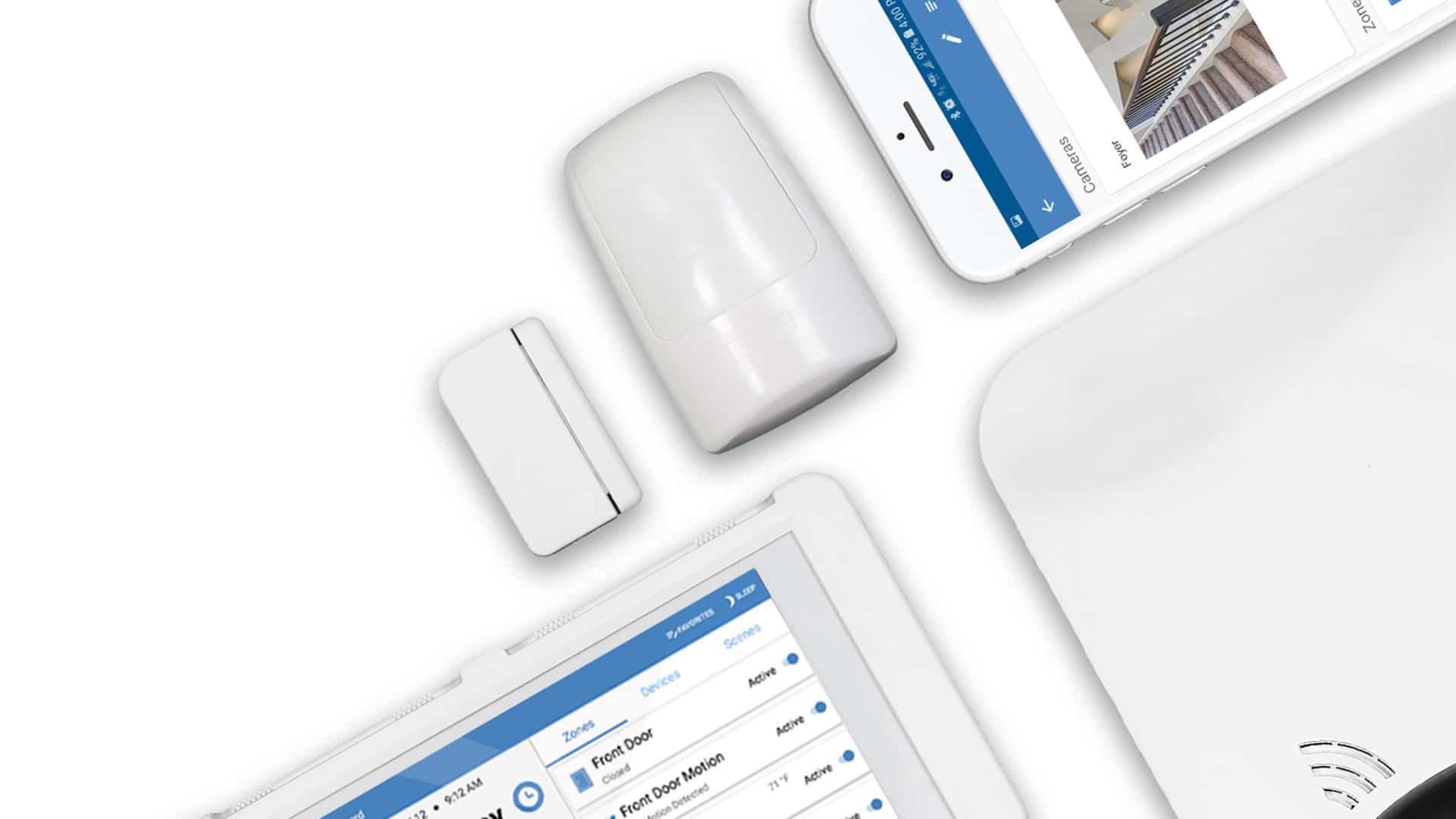
Exceptional Value. Local Protection you can trust.
EMC Security is Georgia’s largest local security company. You don’t sacrifice anything for the low cost – great protection, excellent technical support, and the latest technology.
With no contract required, you have no risk!
“I’m happy with the flexibility it allows me…there’s no contract binding me! Knowing my home is safe and being looked after while I’m at home or away gives me a sense of peace and calm.” – Cheryl C.
“At this point, EMC has a 100 out of 100 score. They were punctual, efficient, professional and just nice. I couldn’t be any happier with the results. The cameras are excellent as well.” – Neil K.
“Very comfortable with EMC as they are also owned by my electric co-op, Jackson EMC which is great, and their monthly monitoring cost can be billed on my electric bill monthly, with no service contract.” – Steve G.
“It’s nice to feel like they truly do want to always compete for our business. To be able to feel secure and support a local business on top of it all makes us happy! The app is great and easy to use! Been very happy so far!” – Lina S.
“EMC Security knew exactly what I needed for my home. I feel secure now.” – Dorothy M.

Activate What You’ve Got
If your system is ready to go, it’s a quick and easy process to inspect and reprogram it to communicate with EMC Security’s monitoring centers.

Make an Old System New
This is a great time to modernize the system components.
Upgrade to a sleek color touch keypad, add cellular communication technology, and integrate cameras all while keeping the equipment you already have.
Ready to Get Started?
It’s quick and easy to activate your system or switch to EMC Security.
Complete this form or call us at 770-963-0305.
THE EMC SECURITY DIFFERENCE
Non-proprietary systems
Elite technology partnerships provide the best-in-class, scalable solutions, customized to support your security objectives today, and into the future.
End to end security solutions
As your single-source provider, our engineers, project managers and technicians address your needs with cost-effective solutions and service.
Standards and compliance
Our team will ensure that your facility meets compliance and that you’re adequately prepared to meet any possible regulatory standards.
Local service and support
Owned by three non-profit utility companies, we’ve served the community for over 22 years, with a commitment to excellence in everything we do.
-
Smart home
Smarter Security
By clicking the ‘”Submit” button, you agree that an EMC Security specialist may contact you via text messages or phone calls to the phone number provided by me. Your information is collected and used in accordance with our privacy policy. Msg & data rates apply.
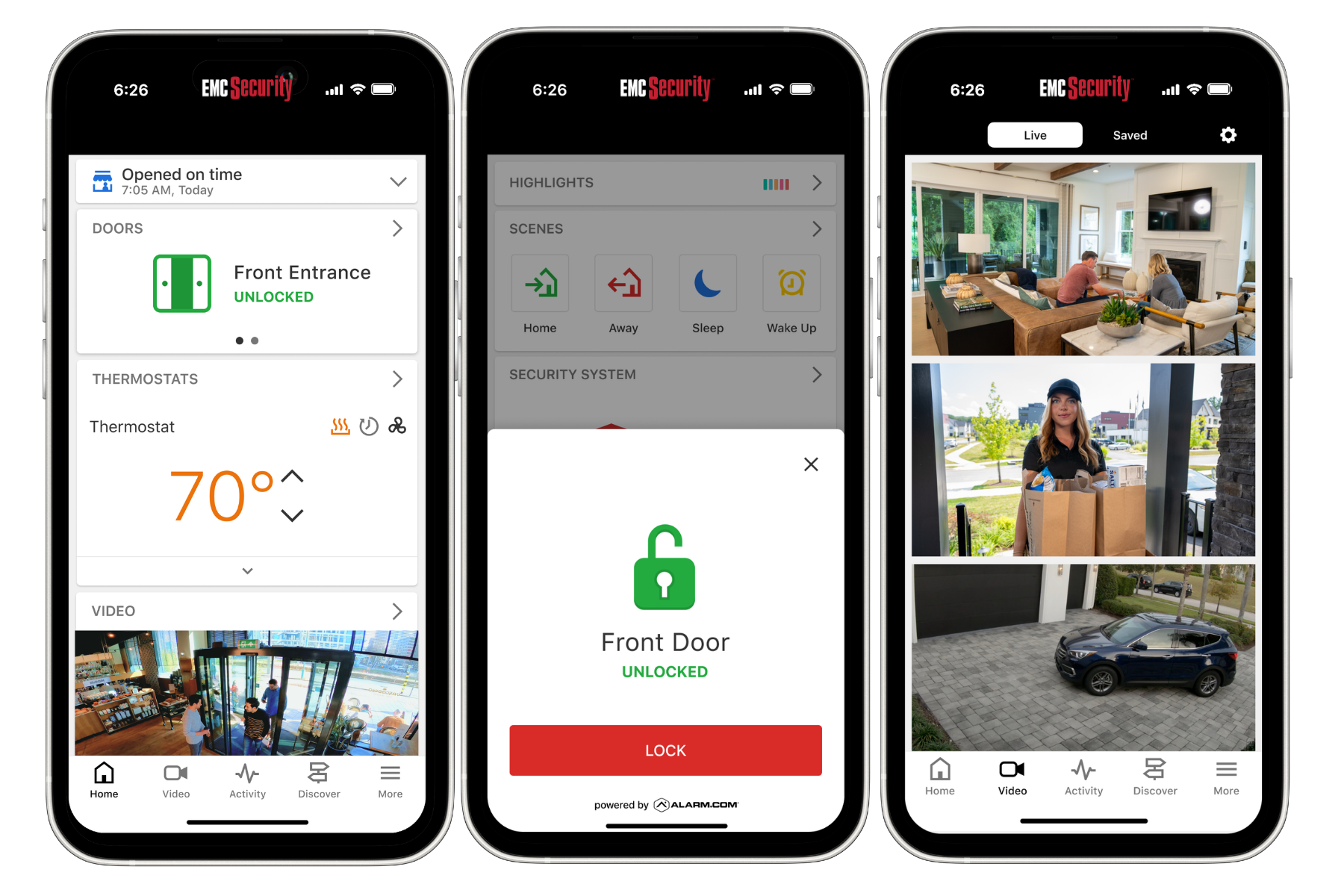
Simplify the things you do every day.
- Connect lights, locks, and thermostats to your security system.
- Stay informed with mobile notifications.
- If someone disarms your security, opens a window, or turns on a light — you’ll know.
- Set up rules to automate your home functions.
- View live video and clips from your cameras from anywhere you are.
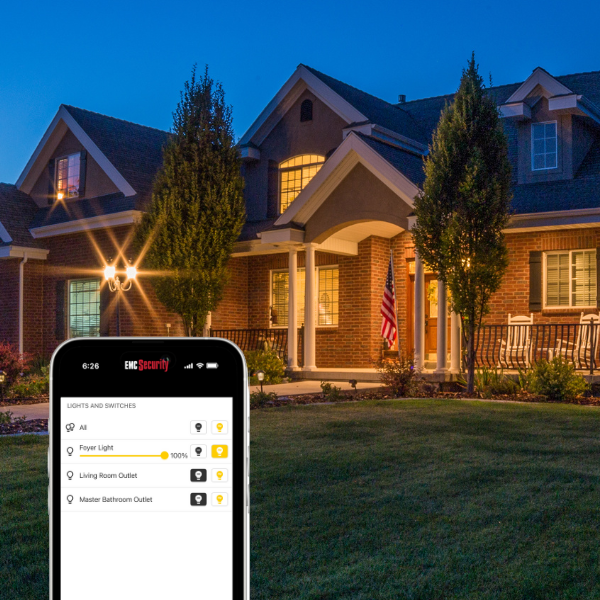
Peace of mind you can see.
Connect lights to your security system for automated comfort and safety.
Peace of mind you can control.
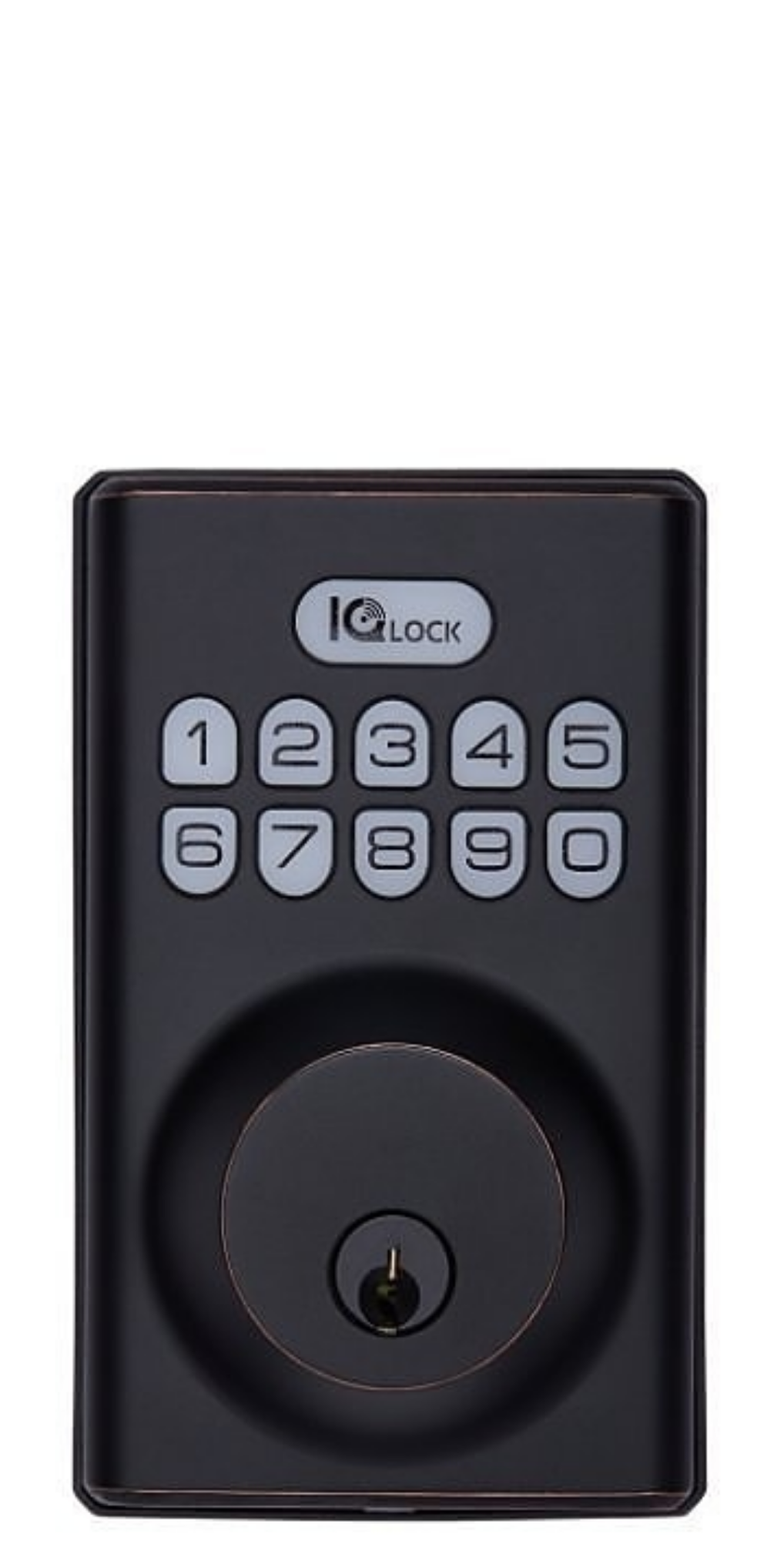
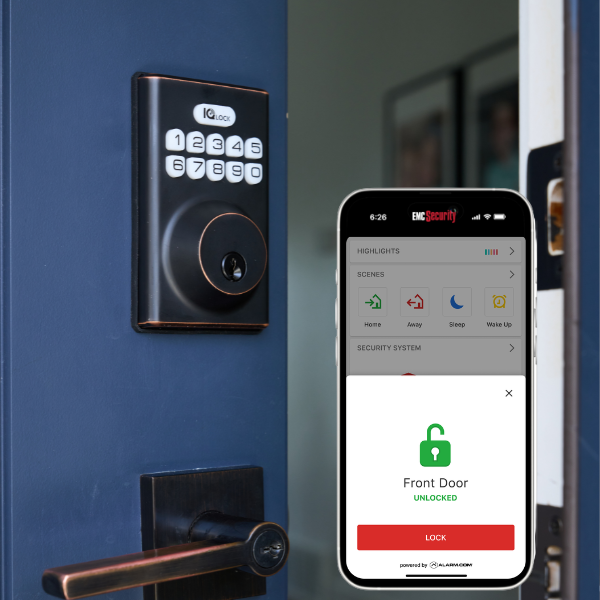
Integrate smart-locks to your security system to control who comes and goes from your home.
Be the first to know what’s going on
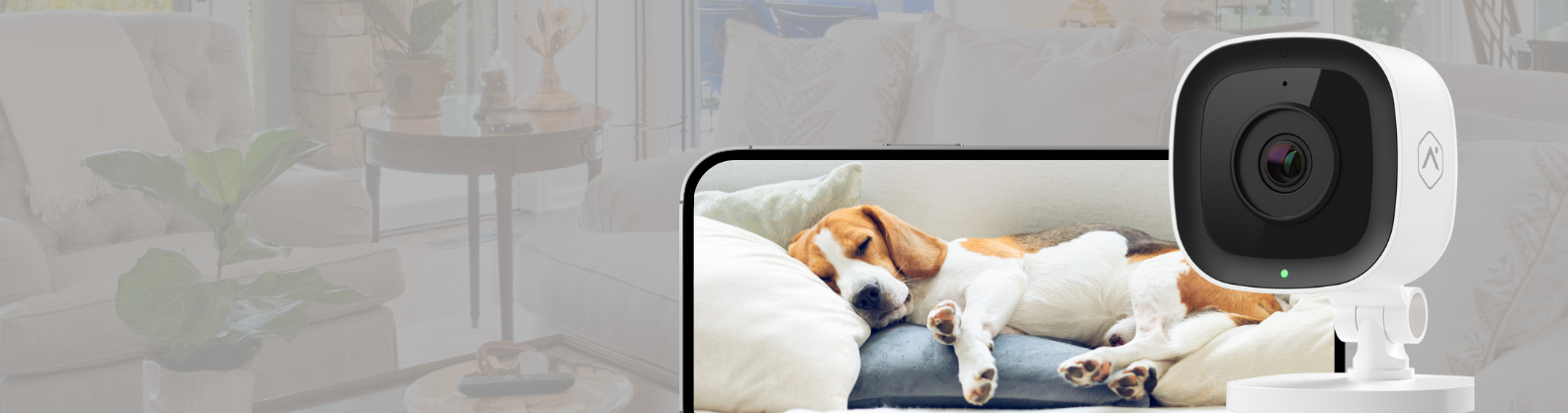
Wireless cameras and DVR camera systems
-
Alarm Registration

Alarm Registration Information
We would like to welcome you as a new EMC Security customer!
Certain municipalities in Georgia require home security system users to obtain an alarm registration/user permit.
It is your responsibility to comply with these requirements. If you fail to do so, the municipality could delay or refuse to dispatch emergency personnel and/or assess you with fines.
As a courtesy, below we have compiled the requirements for some areas that require an alarm registration/user permit. This list is not comprehensive and you should confirm registration requirements with your municipality.
Please contact your local municipality with any questions regarding alarm registration and user permits.
City of Atlanta
1-855-725-7102
crywolfservices.com/atlantaga/
Alpharetta
678-297-6000
alpharetta.ga.us/docs/default-source/public-safety/police/alarm-registration
Braselton
City: Braselton
Details:
- Alarm users for both Fire and Security systems are required to register their alarm systems with the Braselton Police Department.
- Current Cost: $0.00
- Alarm Permit Application: Permit registration must be completed on an original application available only from the Braselton Police Department.
Brookhaven
CryWolf Services, Inc. is the alarm administrator for the City of Brookhaven. An alarm company can register the company or any of its customers the alarm via email to brookhavenga@superion.com.
Under the City of Brookhaven false alarm ordinance, the alarm company is responsible for registration of its customers.
https://www.brookhavenga.gov/police/page/about-home-security-alarms
City of South Fulton
1-855-809-2060
cityofsouthfultonga.gov/3084/South-Fulton-False-Alarms
Customers may register online at: https://www.crywolfservices.com/southfultonga/ or by mail
Annual renewal required. Failure to register $100 fine
Chamblee
770-986-5010
chambleega.com/211/Alarm-Registrations
Dunwoody
866- 889-2365
dunwoodyga@alarm-billing.com
Fayetteville
877-575-0933
fayettevillear@alarm-billing.com
Gwinnett County
Gwinnett County has partnered with CryWolf Technologies to administer a false alarm reduction program.
Details:
If you have any questions or need assistance, please call (833) 281-8743.
Johns Creek
855-725-7100
johnscreekga.gov/quicklinks/community/emergency-information/alarm-registration
Lawrenceville
Lawrenceville (city limits) *as of July 2022:
- Customers must register online at www.crywolfservices.com/lawrencevillega
- No registration fees
- False alarm fees:
- 1st No fine
- 2nd No fine
- 3rd $25 fine
- 4 + $100 fine
- A response to any alarm signal for a customer within the city limits shall cause automatic registration of the alarm system
Lilburn
770-921-2211
cityoflilburn.com/239/Alarm-System-Registration
Marietta
770-794-5265
secure.mariettaga.gov/crywolf/
Milton
678-242-2500
cityofmiltonga.us/government/police/community-programs/register-your-alarm
Peachtree City
770-487-8866
peachtree-city.org/1206/Alarm-Registration
Roswell
833-981-4003
https://www.roswellgov.com/government/departments/police/services-resources/alarm-registration
Roswell residents must register with CryWolf False Alarm Reduction Service: https://www.crywolfservices.com/roswellga/
Sandy Springs
678-297-6000
alpharetta.ga.us/docs/default-source/public-safety/police/alarm-registration
ult-source/public-safety/police/alarm-registration
Sandy Springs
https://www.sandyspringsgapolice.gov/citizen-services/alarm-information/
Video verification required. In order for EMC Security or any provider to provide emergency dispatch on behalf of a Sandy Springs resident or business, a true verification system must be used.
Citizens and/or alarm companies have 24 hours to provide video or audio clips (to verify an actual intrusion event) to the 911 Center.
Snellville
770-985-3500
snellville.org/police-department/alarm-registration
Calhoun County
City: Arlington
Details:
- Alarm users for both Fire and Security systems are required to register their alarm systems with the Arlington Police Department.
- Current Cost: $0.00
- Alarm Permit Application: Permit application is required to be filed in person at the Arlington Police Station.
Cherokee County
City: Canton
Details:
- Alarm users for Security systems are required to register their alarm systems with the Canton Police Department.
- Current Cost: $0.00
- Alarm Permit Application: Canton, Georgia Alarm Permit Application
Clayton County
City: Forest Park
Details:
- Alarm users for both Fire and Security systems are required to register their alarm systems with the Forest Park Police Department.
- Current Cost: $0.00
- Alarm Permit Application: Permit application is required to be filed in person at the Forest Park Police Department.
Cobb County
888-535-4535
cobbcounty.org/public-safety/police/permits/alarm-registration
Dekalb County
City: Chamblee
Details:
- Alarm users for Security systems are required to register their alarm systems with the Chamblee Police Department’s False Alarm Coordinator.
- Current Cost: $0.00
- Alarm Permit Application: Chamblee, GA Alarm Permit Application
City: Dunwoody
Details:
- All monitored alarm systems in Dunwoody are required to be registered with the City. Registration of your residential or commercial alarm system can be completed online at https://www.crywolfservices.com/dunwoodyga/
- Current Cost: $0.00
EMC Security completes all Dekalb County ordinance paperwork for our customers.
Details:
Dekalb County Georgia has adopted a false alarm ordinance that requires every home or business within the Dekalb County limits to register their alarm systems with a third party contracting entity, CRYWOLF Corporation.
The Dekalb false alarm ordinance requires Alarm Companies, including EMC Security to register their active monitored customers with CRYWOLF Corporation. This company has been contracted by Dekalb County to register alarms, collect fees, and to assess penalties for false alarms.
EMC Security is required by the County to provide information about your home or business alarm system, including your name, address, phone numbers, and information regarding your alarm system.
EMC Security is required to pay the annual registration fee that must be paid each year that the customer has an active security system.
The annual alarm registration fee is $5.00 per year. However, there are many other costs and requirements in addition to the annual registration fee.
- All companies must register, with all complete information, and in a timely manner all existing and new alarm service customers in Unincorporated Dekalb County.
- All alarm companies are required to update any changes in their customer account with CRYWOLF within 30 days of the change.
- All alarm companies are required to appear at the location of the alarm system within 45 minutes from the alarm activation at the request of the responding police or fire department. There is a significant cost to staff and monitor for this requirement to appear.
Significant fees, a minimum of $499.00 will be assessed to the alarm company for failure to arrive within the designated timeframe, or for failure to update customer account information.
Significant fines will be assessed to alarm customers in Unincorporated Dekalb County after November 15, 2013 for the following:
- Failure to register an alarm system: $499.00 (registration is handled by EMC Security)
- For any second, third, or subsequent alarm in a one year period
- For failure to repair or replace any problem system
You can view the full Dekalb County Alarm Ordinance by clicking here
Early County
City: Arlington
Details:
- Alarm users for both Fire and Security systems are required to register their alarm systems with the Arlington Police Department.
- Current Cost: $0.00
- Alarm Permit Application: Permit application is required to be filed in person at the Arlington Police Station.
Fannin County
706-258-5171
fannincountyga.com/alarm-ordinance-permit/
$10 fee is required.
Verification Required:
Verify means visual or audible confirmation of an attempted or actual crime, fire, or other emergency at the alarm site by means of:
1. Confirmation by the alarm user at the alarm site or via self-monitored audio/visual equipment.
2. Confirmation by a private security guard or any other individual at the actual
alarm site.
3. Audible and/or visual evidence provided by a monitored alarm system.
An alarm activation alone without verification WILL NOT be dispatched for a Law
Enforcement response.Verification affects Law Enforcement response to residential burglar alarms only.
Automatic response remains for fire, duress, panic button, hold-up, medical alarm
activations and commercial burglar alarms.If the alarm is for smoke, fire or carbon monoxide, the verification process should be accomplished after the monitoring company has contacted Fannin County E911 to dispatch fire services.
Alarm company must be able to provide verification, as defined in section 1, within
24 hours of the request for dispatch to the Fannin County 911 Center if verification
has been obtained by the Alarm company. If verification has NOT been obtained,
Law Enforcement, MAY NOT be dispatched. Failure to provide verification within
24 hours of the dispatching of Law Enforcement could result in the placement of the
residence on a DO NOT RESPOND list. Verification information can be emailed to
verifications@fannincountyga.orgFayette County
ity: Peachtree City
Details:
- Alarm users for both Fire and Security systems are required to register their alarm systems with the Peachtree City Police Department.
- Current Cost: $0.00
- Alarm Permit Application: Peachtree City, GA Alarm Permit Application
City: Fayetteville – City limits does not require registration. Call 770-461-6029 to confirm.
Details:
Alarm users for both Fire and Security systems are required to register their alarm systems with the Peachtree City Police Department.
Current Cost: $0.00
Alarm Permit Application: Fayetteville, GA Alarm Permit Application
Floyd County
City: Unincorporated County Area
Details:
- All alarm systems must be registered within thirty (30) days of installation.
- Initial registration fee is fifteen dollars ($15.00) for newly installed alarm systems.
- Registration is not transferable. New owners must re-register and pay the fifteen-dollar fee.
- There will be no registration fee or fine for medical alarms.
- Failure to register/re-register an alarm system within the allotted time will result in a fine as shown in the fee schedule.
- Any response to an alarm that has not been registered/re-registered will result in a fine shown in the accepted fee schedule.
- Registration of your residential or commercial alarm system can be completed online at www.govpaynow.com. Pay location code is A0004d. Or visit Floyd County E-911 at 5 Government Plaza Suite 232 during regular business hours. If you plan to come in person, please
call before coming as there is not always someone in the office. For more details call Alisha Burnes at 706-236-4543.
City: Rome
Details:
- All alarm systems must be registered within 30 days of installation.
- The initial registration fee is $15.00 for newly installed alarm systems.
- Registration is not transferable. New owners must register and pay $15.00 fee.
- There will be no registration fee for medical alarms.
- Any response to an alarm that has not been registered/re-registered will result in a fee shown in the accepted fee schedule.
- Registration of your residential or commercial alarm system can be completed online at www.govpaynow.com. Pay location code is A0004d. Or visit Floyd County E-911 at 5 Government Plaza Suite 232 during regular business hours. If you plan to come in person, please
call before coming as there is not always someone in the office. For more details call Alisha Burnes at 706-236-4543.
Fees:
- Termination of services after the tenth violation.
- Failure to register/re-register an alarm system within the allotted time – $50.00 fee.
- Any Reponses to an alarm that has not been registered/re-registered – $100.00 fee.
- One – Three false alarms per calendar year – No Penalty
- Fourth false alarm – $35 fee
- Fifth false alarm – $65 fee
- Sixth false alarm – $100
- Seventh or more false alarms – $125 each
Fulton County
Details:
- Residential customers only have to register their alarm after 3 false alarms
- Businesses that utilize and alarm are required to register their alarm with Fulton County Police Department no later than 5 business days after installation
- Business have to register with the Fulton County Police Department no later than 5 business days following installation
- For the third (3rd) and each subsequent false alarm that occurs at the same premises within any calendar year, a fine shall be assessed in the amount of $50.00.
- Customers must register at: https://www.fultoncountyga.gov/
Gwinnett County
833-281-8743
crywolfservices.com/gwinnettcoga/pdfViewer.aspx?prevention/Alarm_Ordinance
City: All
Details:
- Alarm users for both Fire and Security systems are required to register their alarm systems with the Gwinnett County False Alarm Reduction Unit.
- Current Cost: $0.00
- Alarm Permit Application: Can be downloaded from the Gwinnett County website at https://www.gwinnettcounty.com/portal/gwinnett/Departments/Police/AlarmRegistration
- Gwinnett residents must also register with CryWolf, from CentralSquare Technologies, to administer the False Alarm Reduction Program at https://www.crywolfservices.com/gwinnettcoga/
Henry County
770-288-7866
co.henry.ga.us/Departments/Public-Safety-Emergency-Services/E-911/Register-Your-Alarm
Richmond County
Video Verification Required
https://www.richmondcountysheriffsoffice.com/verified-response-procedure.cfm
706-821-1047