Your cart is currently empty!
Search results for: “R”
-
Snapping Shoals
EMC Security and Snapping Shoals EMC
Better Together


As a Snapping Shoals EMC partner, EMC Security has been serving members since 1998 with home and business security protection.
New professional and DIY system
You decide! Choose from professionally installed or DIY self-installed system at a significant savings.

Get A quote >>
Activate the system already in your home
Switch service or activate the alarm system already in your home. Our process is quick and easy.

Be the first to know whatโs happening.
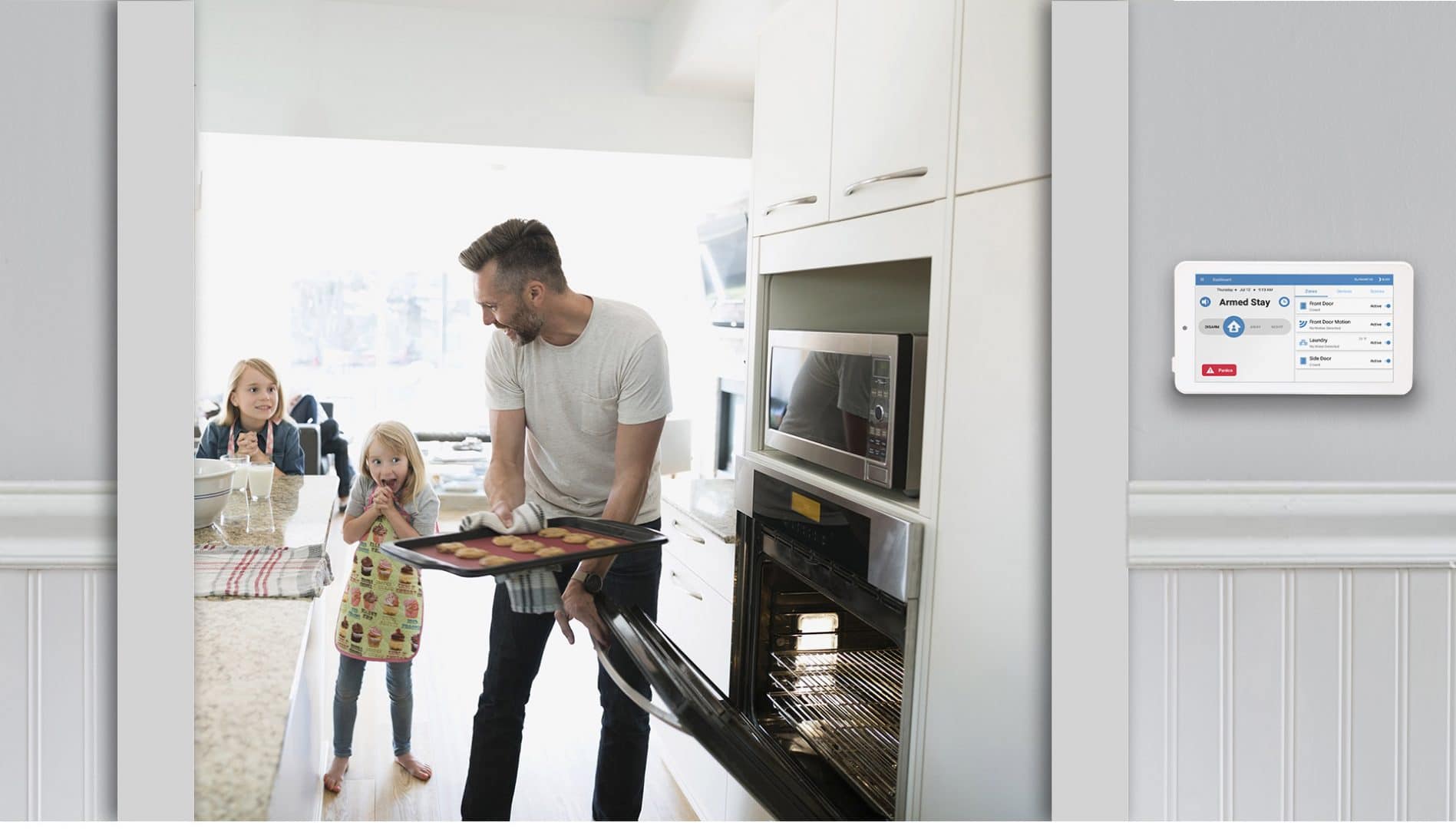
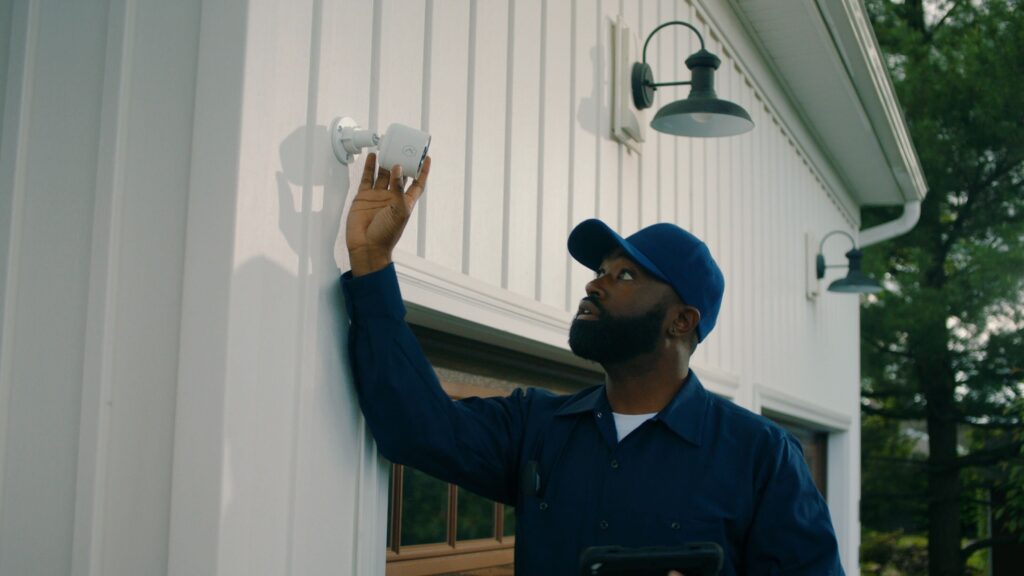
Deter intruders with cameras. See what your kids and pets are doing. Watch for activity around your yard, pool, out-building, or garage.

Smarter home. Safer home.
Your home is safer and more efficient when all your smart-devices work together with convenient mobile control.


Why Choose EMC Security?
Home Security Options That Fit Your Needs.
No Contracts Required.
Now More Options Than Ever Before.
- Use the equipment you already have or install a full new system.
- Use professional installation or do it yourself with our easy self-install security options.
- Commit to a payment plan or choose our famous no-contract option.
We Earn Your Business Every Day.
- Locally owned and operated, we care about the community we live in.
- Award-winning customer service is more than a plaque. Itโs our mission.
- Local service. Local support. Need help? Weโre right here in Georgia when you need us.
-
Soleil Belmont

Soleil Belmont
Welcome to EMC Security!
To set-up alarm monitoring service, please complete and submit the EMC Security Monitoring Agreement below.
-
Soleil

Soleil Laurel Canyon
Welcome to EMC Security!
To set-up alarm monitoring service, please complete and submit the EMC Security Monitoring Agreement below.
-
Soleil Summit Chase

Soleil Summer Chase
Welcome to EMC Security!
To set-up alarm monitoring service, please complete and submit the EMC Security Monitoring Agreement below.
-
Steve Cogswell
SAFE AT HOME, and away.
Modern Security. Local Protection.
EMC Security provides customized solutions that fit your lifestyle, with professional installation or our popular DIY installation option.ย ย No-contract monitoring at an affordable rate.With 24/7 professional monitoring at an affordable rate, itโs a simple, easy choice. And, because we donโt lock you in with a contract, you can cancel anytime. Thatโs why we work hard to earn your business every day.
We keep monitoring rates low because itโs the right thing to do. This rate hasnโt changed since 1999!
Get connected with a security specialist TODAY!

-
MOBILE APP
EMC Security System Mobile App
Convenient, modern control of your integrated, smart security system.
- Arm and disarm your alarm system
- View live and recorded video clips
- Control your z-wave smart devices


A customizable home screen that puts the most important features at the forefront.
Be the first to know whatโs going on at home.
- Receive a notification whenever a door or window opens or closes, or when motion is detected โ both inside and outside your home.
- See whatโs happening in real-time with a live stream from each camera or catch up on the dayโs events with recorded clips.
- Turn up the thermostat, lock the front door or turn off the living room lights, right from your phone with the click of a button or with automated scenes.

Stay connected to your home โ inside and out.


A customizable home screen that puts the most important features at the forefront.
Intuitive, simple and user-friendly
View a Demo
-
FAQs

FAQs
Security System Questions
Do I have to register my alarm system?
Certain municipalities in Georgia require home security system users to obtain an alarm registration/user permit. If you fail to do so, the municipality could delay or refuse to dispatch emergency personnel and/or assess you with fines. View info for your county here.
Where can I view my system manual?
View this page for a list of the most common security system manuals.
Where can I purchase a replacement battery?
You can order a battery from EMC Security here.
How can I add monitored fire protection to my system
Fire protection through EMC Security is a simple addition to your comprehensive alarm monitoring service. Adding smoke or heat detectors to your home security system may very well be the best decision you make when it comes to the safety and security of your loved ones. Our 24/7 monitoring center team is technically trained to handle the detection of a fire in a way that minimizes its effect. Faster detection results in faster emergency response times.
test
Your monthly monitoring cost doesnโt change when you add fire protection to your security system. Contact EMC Security to purchase smoke/heat detectors for your home at 770-963-0305. We also can send a security specialist to your home to determine the placement of the detectors in your home.
Account Information Questions
What do I need in order to update the name on my account?
When you signed up with EMC Security, the account was set up for the account holder(s). Whoever the account holder is who signed all the documentation is responsible for the account.
If there have been any legal changes with your name, due to changes such as a divorce or a marriage, then we will need a copy of the divorce decree or marriage certificate along with your verbal password in order to make the proper changes to the account. You may submit this information by email to info@emcsecurity.com or by fax to 770-963-1952. Once we receive this information we will send you the new documentation to sign to complete the update of the account.
What if I am the account holder and I want to update my password or numbers?
Please contact our office. A member of our support team will then update your information with our monitoring center.
What if the account holder is deceased but we want to keep the service?
If the EMC Security account holder is deceased and you would like to keep the service active, you will need to send us a copy of the death certificate. We will then send you new paperwork to update the account into your name. Once we receive those documents the account will be updated.
If you wish to cancel the service, we will need to provide a copy of the death certificate, along with the verbal password (if you have access) along with the cancellation date. Please contact our office at 770-963-0305 to speak with the Cancellations Department. You will need to provide the account number, verify the password and select a date for cancellation.
What if I am moving and I need to cancel service at my old home and establish new service at my new home?
If you are moving and need to establish new service at your new home, we are happy to assist you and make it an easy process for you. Simply contact our office at 770-963-0305 to speak with a live agent in the Cancellations Department. You will need to provide your account number and verify the password. You will also be able to select an appointment date to end service at your old home, as well as select a service date at your new home.
How do I get an insurance certificate?
Many insurance companies offer discounts if you have a monitored security system in your home. Click here to request a certificate to be emailed to you.
Billing Questions
Why is my billing quarterly? I thought I signed up for month to month?
All EMC Security billing is set up on a quarterly (3 month
) basis. Monthly billing only applies to those with existing Jackson EMC, Walton EMC, Greystone Power, Habersham EMC, and Blue Ridge Mountain EMC accounts in good standing.Why does my invoice say โdue upon receiptโ? When is it actually due?
Each invoice is due upon receipt. Your EMC Security invoice should be paid as soon as it is received each month in order to ensure timely and proper processing of your payment before the next billing cycle therefore ensuring no late fees for delinquent payment are incurred.
How do I pay my bill online?
Click this link to our payment portal where you can view invoices and pay your bill via credit card or bank account. View guided instructions here.
Can I set-up auto-pay?
Yes! CLICK HERE to set up auto pay or call our office at 770-963-0305.
Monitoring Questions
How is my security system monitored?
With our Secure Pathโข monitoring architecture, your alarm signal is sent simultaneously to multiple, separately staffed, UL listed, CSAA Five-Diamond Certified central stations, where a highly trained operator will always be available to offer assistance in an emergency.
Other companies utilize a single command center that requires rerouting in the event the first center is busy or otherwise disabled, wasting time and creating unnecessary risk. With EMC Security, your home and loved ones are protected with assistance in an average of 14 seconds.
Iโve dropped my phone line, what should I do? How does this affect my system?
If you have dropped your phone line, it is possible that your system may no longer be communicating with us. Some systems may or may not include a backup method of communication. If you are not sure if your system is communicating properly, please contact our Monitoring Center at 888-745-4733 to apply a test signal. There are several alternative communication methods to a phone line that may also save you money. Please contact our sales department at 770-963-0305 between 8a-6p for more details.
Why am I receiving automated calls regarding trouble on my security system. What are these calls about? Why are we getting these?
EMC Security recently upgraded their monitoring center communication system to ensure our customers are informed of potential system problems. The newly released IVR (Interactive Voice Response) system will automatically call customer-supplied contact phone numbers when a system trouble condition is reported from the customerโs alarm system. The IVR system will play a pre-recorded message to alert you of a possible trouble condition and provide steps to contact the EMC Security monitoring center for more information.
What happens if I cancel the alarm at the keypad?
It is important to familiarize yourself with EMC Securityโs dispatch pocedures for intrusion, fire, medical and panic/duress. View dispatch procedures >
-
iOS App
EMC Security iOS App App User Guide

1. GET STARTED
2. DOWNLOAD THE EMC SECURITY APP
3. SIGN IN
4. MAIN DASHBOARD
5. SECURITY ALARM FEATURE
6. SETTINGS
7. LIGHTS, LOCKS, THERMOSTATS, CAMERAS
8. ACCOUNT AND USER MANAGEMENT
1. GETTING STARTED
With the EMC Security app, you will be able to gain complete control over your home by having access to your security system, lights, locks, thermostats, cameras, and garage doors.
2. DOWNLOAD THE EMC SECURITY APP
The free iOS EMC Security app can be downloaded in the App store.


3. SIGN IN
You will receive a username via email. The password is abcd1234. Once you have installed the application, enter in your Username and Password. If you have forgotten your password, use the โForgot Passwordโ link to have a temporary password sent to your email address. Every time the application is launched, it will check to see if any changes have been made to your account.
To change Username and password to the app, click this link to the website. Once there, please follow the instructions below:
- Login in using the username and password above
- Click on Contact List
- Select on your current Login Name (this will usually be your first name and last name)
- Click on Change User Name or Change Password
- Enter your new User Name or Password and click on submit the Sign In screen, press the menu at the top left and select Logout.
4. MAIN DASHBOARD SCREEN
Application Menu
At the very top of every screen, you will see the EMC Security application menu.
Three stacked bars (hamburger menu): Located at the top left, this menu allows for selecting your โLocationโ if you have more than one security system. It allows quick navigation to other application features. It also allows a primary user to edit sub-users of the account through the Manage Account menu.

4. MAIN DASHBOARD SCREEN
Application Menu
At the very top of every screen, you will see the EMC Security application menu.
Three stacked bars (hamburger menu): Located at the top left, this menu allows for selecting your โLocationโ if you have more than one security system. It allows quick navigation to other application features. It also allows a primary user to edit sub-users of the account through the Manage Account menu.

Location Name: Located just right of the hamburger menu is the name of the security system for which your app is currently showing status. Users that have a business or a vacation home can select from these locations via the hamburger menu.
Pen icon: The Location name can be changed by clicking the Pen and editing the System name. This is used to create favorites on the app.
Z Wave icon: If your Connect+ panel is equipped with the optional Z Wave automation card, this icon will allow you to perform device inclusion/exclusion functions. Please contact your dealer or refer to the device documentation for speci๏ฌc processes, as they vary among manufacturers.
Bell (silent) icon: If your security panel is in a Trouble condition, clicking this icon will silence trouble beeps. Please refer to the section on Troubles for more information. This icon applies only for the SECURITY feature.
More menu (three stacked dots): This menu is also Feature speci๏ฌc and is used to provide access to Feature settings that are less commonly used. For example, in the SECURITY feature, this menu allows the application user to select whether to arm silently and/or to specify that the panel be armed to allow No Entry Delay. A No Entry Delay might be used for an Arm-Stay mode when everyone that would potentially disarm the system is already inside the business/home (no one else is expected).
5. FEATURES MENU
The feature Menu content will vary depending on whether your security system has an automation option card installed. The primary feature of the Alula application is SECURITY. If you do have an optional automation card installed the menu will include: SECURITY, LOCKS, LIGHTS, GARAGE DOORS, THERMOSTATS, & SCENES.
SECURITY FEATURE
In the Feature Menu, you will notice that SECURITY is bold and underlined. If itโs not, please press it now. The state of your security panel is shown in bold text directly at top center. If the security system is Disarmed, three arming icons are shown in the middle of the screen to allow one click access to arm your security panel.

ALARM STAY
In the Feature Menu, you will notice that SECURITY is bold and underlined. If itโs not, please press it now. The state of your security panel is shown in bold text directly at top center. If the security system is Disarmed, three arming icons are shown in the middle of the screen to allow one click access to arm your security panel.

ALARM AWAY
Arming your system for Away is used when the secured home or building is expected to be unoccupied. All exterior sensors and interior motion detectors are active once the system enters Away mode.
ALARM NIGHT
Arming your system for Night is used when the secured home or building is expected to be occupied, but speci๏ฌc areas within the home or building are not expected to be used. All exterior sensors are active and typically some interior motion detectors are active when the system is armed to Night mode. An example of this may be a motion sensor in an attached garage or unoccupied basement.
DISARM
Disarming your system through the application is con๏ฌgured to require a valid user PIN by default. Enter your PIN and press SEND to disarm the system. Through the SECURITY settings (detailed below) the application can be con๏ฌgured to not require a PIN.
Please ensure that your mobile device has a security code or other security feature of its own so that an unknown user of your mobile cannot compromise your home or businesses security panel.

SECURITY FEATURE CONTEXT MENU
STATUS
Press the Status icon to return to the Arming / Disarming screen of the application. The Status screen is the default starting point within the app. This screen was shown as the Main Dashboard above.
ZONES AND BYPASSING
Press the Zones icon to see all your security sensors and their zone names. On this screen you can see all active zones, and can bypass zones to allow arming with zones open. An active zone sensor will be included in the protection algorithm where a bypassed zone sensor will not. An example would be to bypass a window zone to allow it to remain open on a hot night while allowing the system to arm.
Each user of the security system must be granted (or denied) bypass rights to allow that user to bypass a zone. Refer to the section on User and Account Management for additional details.
EVENTS
The Events screen shows system activity and the system user that initiated each event.
TROUBLES
The Troubles screen shows any problems that are present with your security system. Examples include; loss of AC power, temper conditions on the sensors, low battery on a sensor
6. SETTINGS
The Settings screen allows you to change and con๏ฌgure app and security system features and settings.
Require PIN to disarm: This setting is on by default. When on, the mobile device user must enter a valid security system PIN and press โSENDโ to disarm the system. When off, the application presents a single button to disarm the security system. In this case, you must ensure the security of your phone.
Reset Connect+ Panel: Allows the application to initiate
a soft reset of the panel remotelyReset ZWave Module: Allows the application to reset the Z Wave automation module if it is installed in your Connect+.
Physical location: The application can inform the panel where it is located. This information is used by the panel to calculate sunrise and sunset times for automation events.


7. LOCKS, LIGHTS, GARAGE DOORS, & THERMOSTATS
If your security system includes an optional automation card, these device categories are enabled on your system. These device categories allow you to quickly select and manually operate your automation devices attached to your system.
SCENES FEATURE
The Scenes Feature is available if your panel includes an optional automation card. Scene control is a very powerful feature of the security system. Please review and test carefully each scene you con๏ฌgure.
Scenes allow a type of when-what control to be automatically executed by the security system. When any of a set of โTriggersโ occurs, the system executes What โActions.โ It is important to repeat that any trigger con๏ฌgured within a scene will cause the con๏ฌgured Actions to be executed.
CREATE/EDIT A NEW SCENE
Press the SCENES title in the Feature Menu. To edit an existing scene, click its title in the list of scenes shown.
To create a new scene (example: Auto Arm Away at 9am):1. Tap the โ+โ sign in the Application Menu โ at the top right.
.2. Enter a name for your new scene โ โAuto Arm 9amโ for example.
3. Select your new scene from the list of scenes in the scene list. Notice that it is created โInactiveโ.
4. When you tap the scene you will see Triggers and Actions. Tap the โ+โ on the Triggers section of the screen.
5. Triggers are the โwhenโ of a scene. If any trigger is true, thenthe sceneโs actions will be executed. Triggers can be grouped as:
a. Security Triggers
b. Time/Date Triggers
c. Automation Device Triggers
6. Some triggers requirecon๏ฌguration โ For example,select โOnce a Dayโand con๏ฌgure the time to 9am.6. Some triggers requirecon๏ฌguration โ For example,select โOnce a Dayโand con๏ฌgure the time to 9am.
7. Actions are the โwhatโ of a scene. Actions can be grouped as
a. Security Actions
b. Automation Actions
8. For our example, tap the โ+โ in the Actions section and select โArm or Disarm the Systemโ
a. Con๏ฌgure the Action to โArm Awayโ
9. Letโs say you have some Z Wave lights you want to turn off as well
a. Click the โ+โ and add any additional Actions (Z Wave All Off might be a good one)
10. Remember to click the toggle to โActivateโ your new scene.
8. Account and User Management
The primary account holder may create additional sub-accounts within the platform.
To create Sub-Accounts:
1. Tap Manage Account or Users in the Application Menu (top left hamburger menu).
2. All existing accounts will be shown and may be edited.
3. Tap the red โ+โ sign at the bottom right
4. The username must be unique within the system
5. Enter all required parameters for the account creation.
6. Tap the new user to grant the user access to one or more security systems on the account[screen -โGrantedโ].
7. Tap User Options to apply additional role based security. Please note that the user PIN code for the security system is assigned inside the User Options. It must be unique among all users of the panel.
8. Additional information about the user can be entered by clicking Contact Info at the bottom of the screen.
-
Contact
Contact
Fax 770-963-1952
Send Us A Message
Frequently Asked Questions
Security System Questions
Do I have to register my alarm system?
Certain municipalities in Georgia require home security system users to obtain an alarm registration/user permit. If you fail to do so, the municipality could delay or refuse to dispatch emergency personnel and/or assess you with fines. View info for your county here.
Where can I view my system manual?
View this page for a list of the most common security system manuals.
Where can I purchase a replacement battery?
You can order a battery from EMC Security here.
How can I add monitored fire protection to my system
Fire protection through EMC Security is a simple addition to your comprehensive alarm monitoring service. Adding smoke or heat detectors to your home security system may very well be the best decision you make when it comes to the safety and security of your loved ones. Our 24/7 monitoring center team is technically trained to handle the detection of a fire in a way that minimizes its effect. Faster detection results in faster emergency response times.
Your monthly monitoring cost doesnโt change when you add fire protection to your security system. Contact EMC Security to purchase smoke/heat detectors for your home at 770-963-0305. We also can send a security specialist to your home to determine the placement of the detectors in your home.Security System Questions
What do I need in order to update the name on my account?
When you signed up with EMC Security, the account was set up for the account holder(s). Whoever the account holder is who signed all the documentation is responsible for the account.
If there have been any legal changes with your name, due to changes such as a divorce or a marriage, then we will need a copy of the divorce decree or marriage certificate along with your verbal password in order to make the proper changes to the account. You may submit this information by email to info@emcsecurity.com or by fax to 770-963-1952. Once we receive this information we will send you the new documentation to sign to complete the update of the account.
What if I am the account holder and I want to update my password or numbers?
Please contact our office. A member of our support team will then update your information with our monitoring center.
What if the account holder is deceased but we want to keep the service?
If the EMC Security account holder is deceased and you would like to keep the service active, you will need to send us a copy of the death certificate. We will then send you new paperwork to update the account into your name. Once we receive those documents the account will be updated.
If you wish to cancel the service, we will need to provide a copy of the death certificate, along with the verbal password (if you have access) along with the cancellation date. Please contact our office at 770-963-0305 to speak with the Cancellations Department. You will need to provide the account number, verify the password and select a date for cancellation.
What if I am moving and I need to cancel service at my old home and establish new service at my new home?
If you are moving and need to establish new service at your new home, we are happy to assist you and make it an easy process for you. Simply contact our office at 770-963-0305 to speak with a live agent in the Cancellations Department. You will need to provide your account number and verify the password. You will also be able to select an appointment date to end service at your old home, as well as select a service date at your new home.
How do I get an insurance certificate?
Many insurance companies offer discounts if you have a monitored security system in your home. Click here to request a certificate to be emailed to you.
Billing Questions
Why is my billing quarterly? I thought I signed up for month to month?
All EMC Security billing is set up on a quarterly (3 month) basis. Monthly billing only applies to those with existing Jackson EMC, Walton EMC, Greystone Power, Habersham EMC, and Blue Ridge Mountain EMC accounts in good standing.
Why does my invoice say โdue upon receiptโ? When is it actually due?
Each invoice is due upon receipt. Your EMC Security invoice should be paid as soon as it is received each month in order to ensure timely and proper processing of your payment before the next billing cycle therefore ensuring no late fees for delinquent payment are incurred.
How do I pay my bill online?
Click this link to our payment portal where you can view invoices and pay your bill via credit card or bank account. View guided instructions here.
Can I set-up auto-pay?
Yes. Call our office at 770-963-0305 for auto-pay.
Monitoring Questions
How is my security system monitored?
With our Secure Pathโข monitoring architecture, your alarm signal is sent simultaneously to multiple, separately staffed, UL listed, CSAA Five-Diamond Certified central stations, where a highly trained operator will always be available to offer assistance in an emergency.
Other companies utilize a single command center that requires rerouting in the event the first center is busy or otherwise disabled, wasting time and creating unnecessary risk. With EMC Security, your home and loved ones are protected with assistance in an average of 14 seconds.
Iโve dropped my phone line, what should I do? How does this affect my system?
If you have dropped your phone line, it is possible that your system may no longer be communicating with us. Some systems may or may not include a backup method of communication. If you are not sure if your system is communicating properly, please contact our Monitoring Center at 888-745-4733 to apply a test signal. There are several alternative communication methods to a phone line that may also save you money. Please contact our sales department at 770-963-0305 between 8a-6p for more details.
Why am I receiving automated calls regarding trouble on my security system. What are these calls about? Why are we getting these?
EMC Security recently upgraded their monitoring center communication system to ensure our customers are informed of potential system problems. The newly released IVR (Interactive Voice Response) system will automatically call customer-supplied contact phone numbers when a system trouble condition is reported from the customerโs alarm system. The IVR system will play a pre-recorded message to alert you of a possible trouble condition and provide steps to contact the EMC Security monitoring center for more information.
What happens if I cancel the alarm at the keypad?
It is important to familiarize yourself with EMC Securityโs dispatch pocedures for intrusion, fire, medical and panic/duress. View dispatch procedures >
-
About us

Since 1998, EMC Security has proudly serviced over 135,000 homes and businesses in Georgia.
We are owned in equal parts by the electric utility companies of Jackson EMC, Walton EMC, and GreyStone Power. The companies have each provided over 80 years of service. Itโs been a goal of EMC Security to continue the tradition of providing the best customer service possible.
We take great pride in our roots, which are the backbone of our famous โno-contract requiredโ program. This program is what makes us different from most security companies. Because you are free to cancel at any time, we must earn your business each and every day.


Proudly Partnered with:


ALWAYS WATCHING SO YOU DON’T HAVE TO BE.
With 24/7 professional monitoring at an affordable rate, its an easy choice. And, because we donโt lock you in with a contract, you can cancel anytime. Thatโs why we work hard to earn your business every day.
We keep monitoring rates low because itโs the right thing to do. This rate hasnโt changed since 1998!
Why Choose EMC Security?
Home Security Options That Fit Your Needs.
No Contracts Required.
Now More Options Than Ever Before.
- Use the equipment you already have or install a full new system.
- Use professional installation or do it yourself with our easy self-install security options.
- Commit to a payment plan or choose our famous no-contract option.
We Earn Your Business Every Day.
- Locally owned and operated, we care about the community we live in.
- Award-winning customer service is more than a plaque. Itโs our mission.
- Local service. Local support. Need help? Weโre right here in Georgia when you need us.
Redundant Monitoring

EMC Security knows that our customers deserve the safest, highest level of protection, so we provide what is called fully โredundantโ monitoring service to customers. Receiving fully redundant monitoring service means that multiple fully staffed central monitoring stations located in different geographic locations are monitoring customersโ homes and businesses simultaneously and seamlessly ensuring that customers receive the best protection possible with the fastest response time in seconds, not minutes.
With our unique monitoring service architecture, called Secure Pathโข, should anything happen to one monitoring center, the other monitoring centers continue to monitor seamlessly without any interruption or downtime. Full-time active redundancy is far superior to a third-party fail-over disaster recovery center which is the common backup for most of the other alarm monitoring companies in Atlanta.
A third-party fail-over disaster recovery center means that should one monitoring center be compromised in any way, monitoring must then be switched over to a back-up facility which could take up to several hours. This method is substandard and does not provide customers with the highest quality of monitoring possible.
Certifications
EMC Securityโs central stations are UL approved, TMA (CSAA) 5 Diamond Certified. TMA Five Diamond designation is granted annually to central stations that satisfy all of the requirements of the five points of excellence:
- Commitment to random inspections and quality criteria standards by a nationally recognized testing laboratory such as FM Approvals, Intertek/ETL and UL.
- Commitment to the highest levels of customer service.
- Commitment to ongoing job-related education and testing by having 100% of its central station operators certified using the TMA online training series.
- Commitment to raising the industry standards through TMA membership and participation in its activities.
- Commitment to reducing false dispatches.
Our Certifications


EMC Security Monitoring Territory

EMC Security Gives Back
EMC Security follows the EMC cooperative principle of โConcern for Communityโ by donating time and resources to local organizations within the Metro Atlanta area. Below are just a few organizations we are proud to support.